Deploy Salesforce metadata between orgs — without leaving the page you’re on.
DeployWizard runs in a Chrome side panel next to your org. Pick Flows, Apex, Layouts and more from the source org, and push to the target org (validate first to be safe). No complex tools, no change sets.
Sign in to the source and target orgs — dev, sandbox or production. DeployWizard remembers them for next time.
2
Pick components
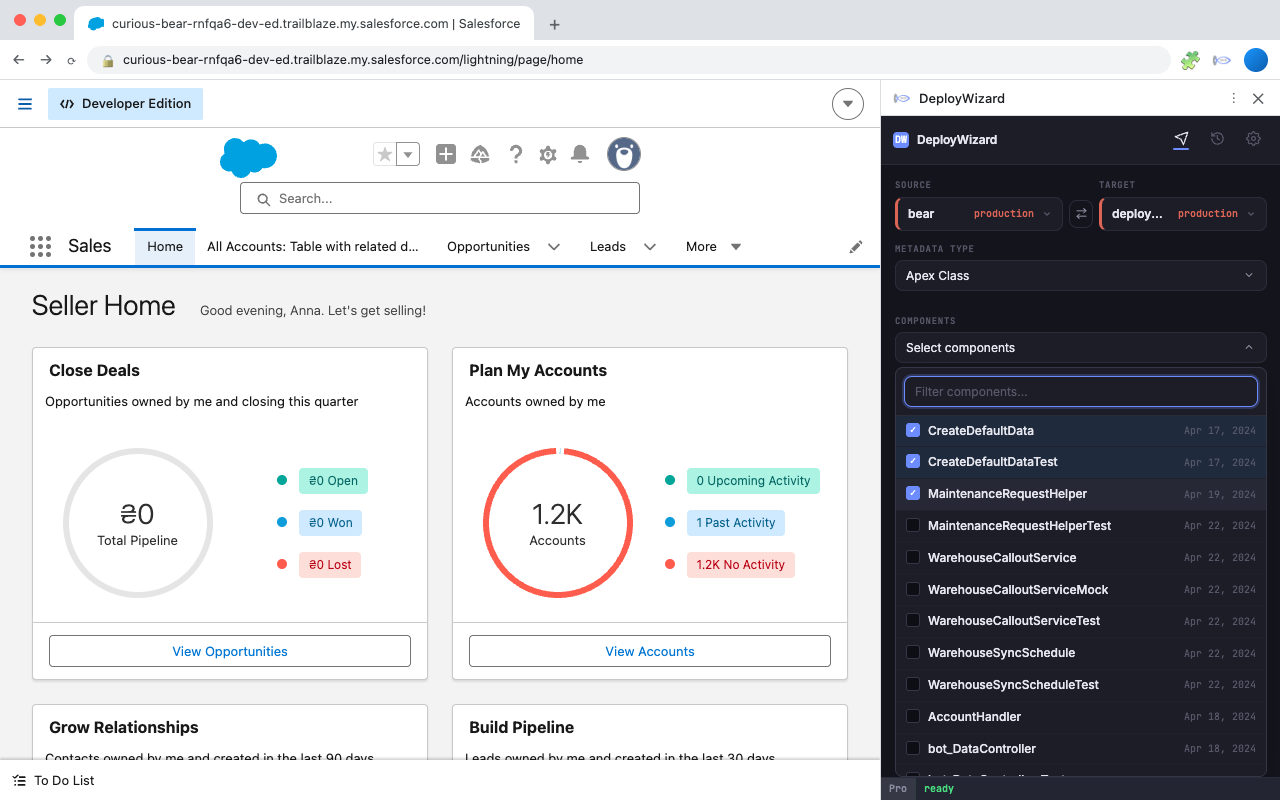
Browse the source org’s metadata by type, filter by typing an API name, and tick exactly what should move. Ticked components are added to the package.
3
Validate first
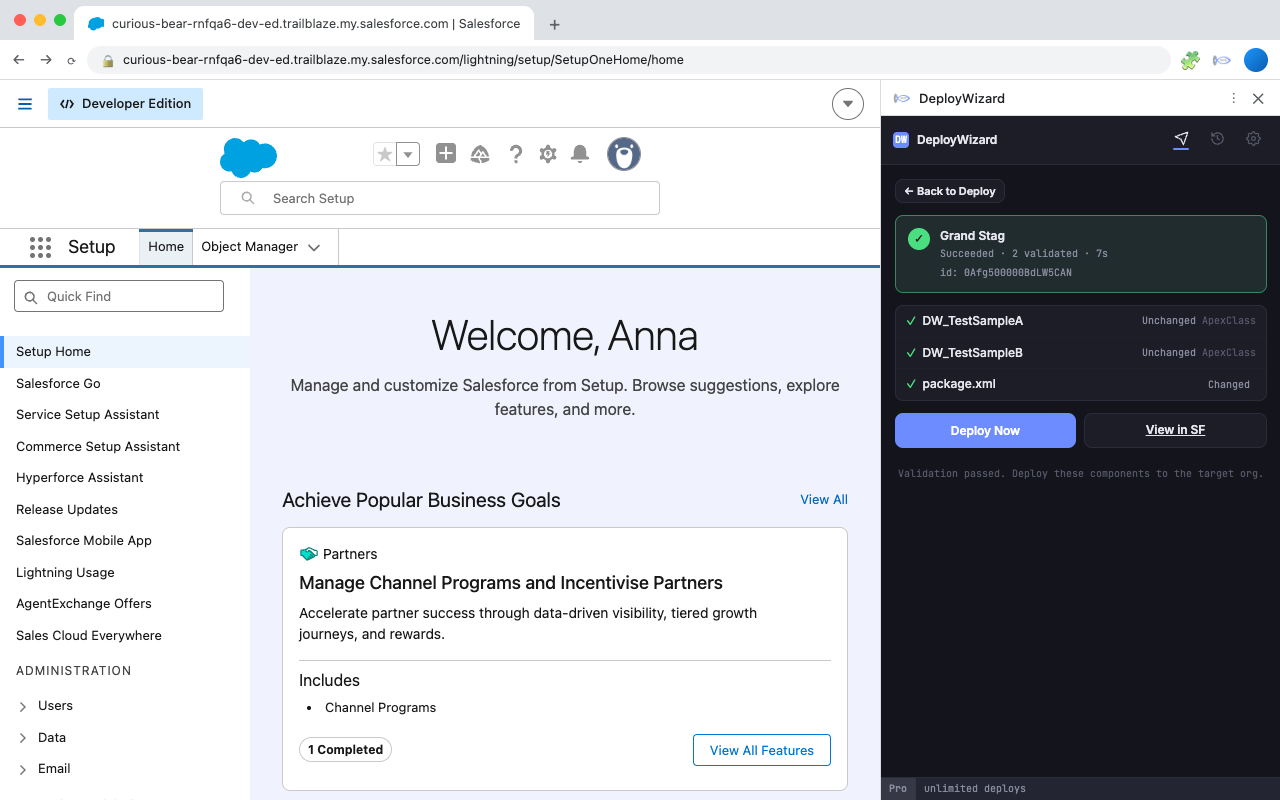
Run a validation-only deploy against the target org — so failures surface before anything changes. Optional but best practice.
4
Deploy
Push the validated or brand new set to the target org. If validation ran tests, Quick Deploy ships it without re-running them.
5
Track history
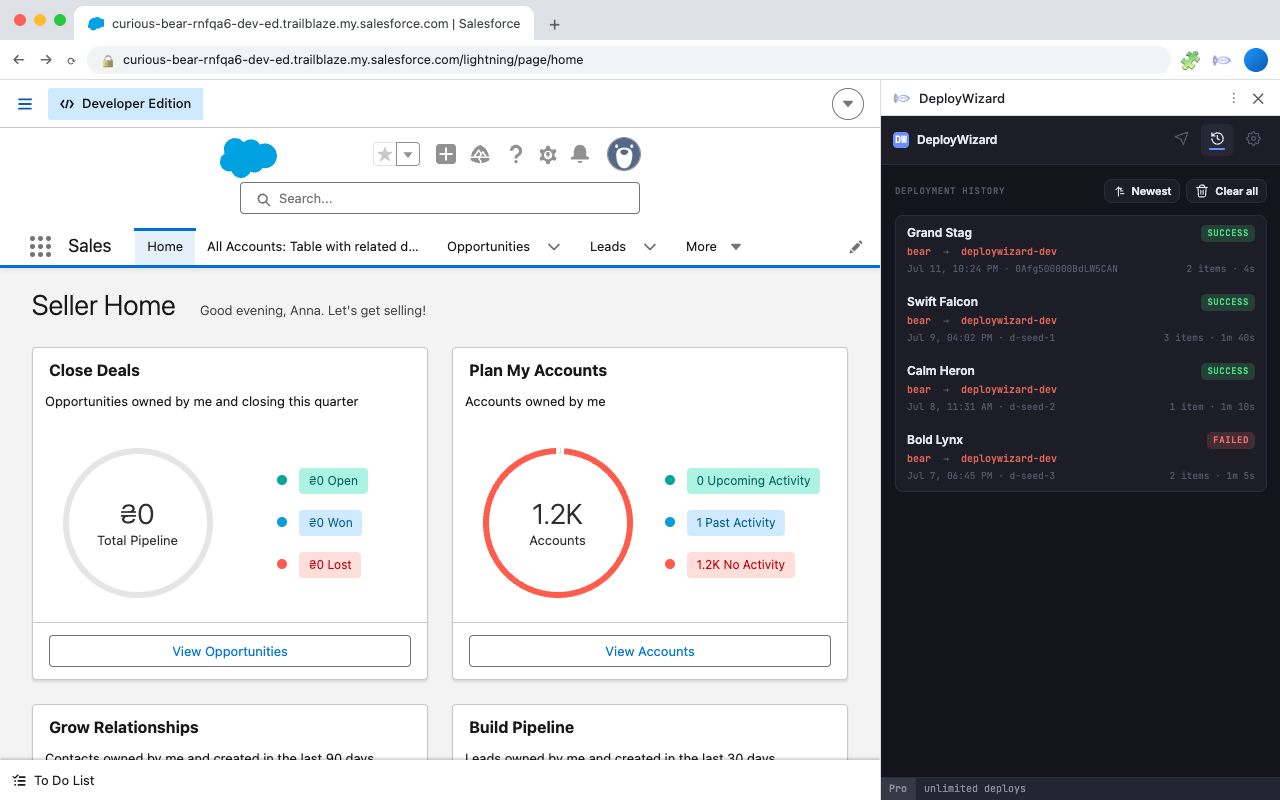
Every run is logged — components, source and target orgs, timestamp, and result — so you can always answer “what changed?” or redeploy the same package.
60+ metadata types, and counting
Everything below can be deployed today. More types land in every release; if the one you need is missing, request it in the Support section.
Admin & Configuration 10
Custom Field
Custom Label
Custom Metadata
Custom Object
Custom Permission
Global Value Set
Queue
Record Type
Translation
Validation Rule
Omni-Channel 7
Omni Routing Configuration
Presence Configuration
Presence Decline Reason
Presence Status
Service Channel
Skill
Skills-Based Routing Rule
User Interface 11
Compact Layout
Custom Application
Custom Tab
Email Template
Flexi Page
Home Page Component
Home Page Layout
Layout
Letterhead
Quick Action
Web Link
Automation 8
Agentforce Agent
Approval Process
Assignment Rules
Auto Response Rules
Escalation Rules
Flow
Prompt Template
Workflow
Code 8
Apex Class
Apex Component
Apex Page
Apex Trigger
Aura Definition Bundle
Lightning Component Bundle
Message Channel
Static Resource
Security & Access 12
Auth Provider
Connected App
External Client App
External Credential
Named Credential
Permission Set
Permission Set Group
Profile
Public Group
Remote Site Setting
Role
Sharing Rule
Data & Reporting 5
Dashboard
Duplicate Rule
Matching Rule
Report
Report Type
Screenshots
Filter and pick components from the source org’s metadata.Per-component deployment results, success or error.Every deployment logged — what moved, where, and how it ended.
Troubleshooting: connecting an org
“Security Warning” on the Allow Access screen
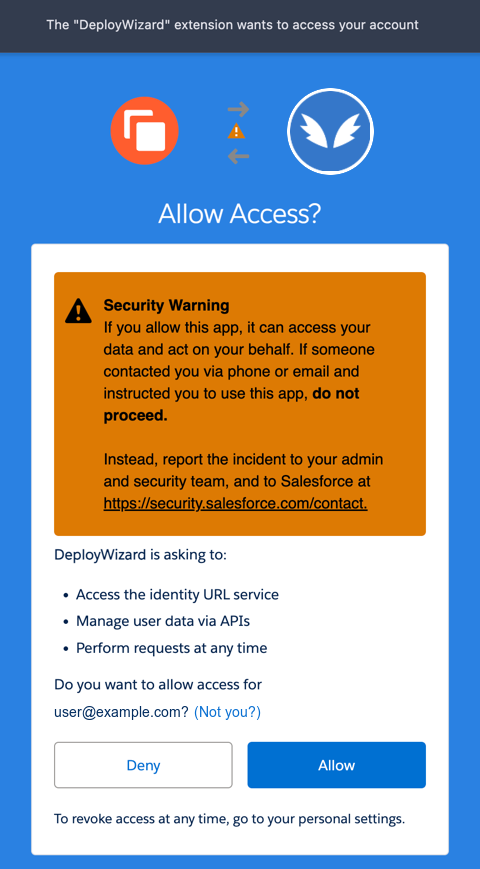
This orange warning comes from Salesforce, not DeployWizard. Salesforce shows the same notice for every app built by a third party — including popular tools like Salesforce Inspector, Workbench, and Gearset. It’s a standard precaution, not an assessment of DeployWizard or a problem with your setup. Review the requested permissions, then click Allow to connect the org.
Salesforce’s standard consent screen for third-party apps.
What the requested permissions mean:
Access the identity URL service — read your username and org ID, so the extension can label each connected org correctly.
Manage user data via APIs — Salesforce’s standard API scope; this is what lets the extension list and deploy metadata. It never touches your business records.
Perform requests at any time — keeps you signed in between sessions so you don’t re-authenticate every couple of hours. The extension only makes requests when you use it.
Everything runs in your browser: tokens are stored locally and sent only to Salesforce. You can revoke access at any moment: in Salesforce Setup, search for Connected Apps OAuth Usage, find DeployWizard, and click the user count to revoke its tokens — or Block the app to cut it off org-wide. Admins can also skip this screen for their whole team by pre-authorizing the app (see “Permitted Users” below).
“This app is blocked by admin” OAUTH_APP_BLOCKED
Your login works — it’s the org that’s turning DeployWizard away. Salesforce tightened connected-app security in late 2025, and orgs can refuse apps an admin hasn’t approved. A one-time approval by an admin fixes it for the whole org:
Try to connect the org from DeployWizard once and let it fail — that first attempt is what makes the app appear in the next step.
In Salesforce Setup, search for Connected Apps OAuth Usage, find DeployWizard, click Install, and confirm. If Install is not showing up, click Load actions.
Check who’s allowed to use the app: open Setup → Manage Connected Apps → DeployWizard and look at Permitted Users. If it says All users may self-authorize (the default), nothing to do here. If it says Admin approved users are pre-authorized, scroll down on that same page to the Profiles (or Permission Sets) list, click Manage Profiles (or Manage Permission Sets), and add the ones your users have.
Go back to Setup → Connected Apps OAuth Usage: if DeployWizard still shows Blocked there (orgs with API Access Control), click Unblock.
Retry connecting in DeployWizard.
Approval is per-org: a sandbox needs its own install even if production already has one. The “Approve Uninstalled Connected Apps” user permission does not clear this error — installing and unblocking the app does.
“User is not admin approved to access this app” OAUTH_APP_ACCESS_DENIED
DeployWizard is installed in the org, but its policy only lets pre-approved users connect. A Salesforce admin fixes it like this:
Open Setup → Manage Connected Apps → DeployWizard and look at Permitted Users.
Either set it to All users may self-authorize — or keep Admin approved users are pre-authorized, scroll down on that same page to the Profiles (or Permission Sets) list, click Manage Profiles (or Manage Permission Sets), and add the ones your users have.
Retry connecting in DeployWizard.
Heads-up: changing Permitted Users revokes the app’s existing authorizations, so already-connected users will need to reconnect once.
Support for DeployWizard
Hit a bug, an org that won’t connect, or a missing feature? Email sfings.dev@gmail.com with “DeployWizard” in the subject. See also the privacy policy.